TABLE OF CONTENTS
Overview
Microsoft has introduced a well-intentioned update aimed at enhancing MIDI functionality. However, this upgrade has led to unexpected issues affecting certain MIDI setups. Microsoft has acknowledged these challenges, offering workarounds and actively working on updates to resolve the problems. For a comprehensive list of known issues and solutions, refer to the Windows Dev Blog post: Windows MIDI Services rollout - known issues and workarounds
- We have observed that this issue impacts products that require a bespoke product driver for functionality.
- It is not expected that this problem will impact class-compliant MIDI devices.
Impacted Windows Updates
- Impacted updates include: 2026-01 Preview Update (KB5074105) (build around 26200.7705)
- Follow-up patches: KB5077181, KB5077241, and similar cumulative/preview updates from January–February 2026 onward.
Why These Issues Occur
The new Windows MIDI service improves overall MIDI performance and introduces modern features, but in some configurations, real-time MIDI messages do not pass correctly from the device to the application. This problem can occur even when the device appears in Windows Device Manager and is detected by the software's MIDI inputs, causing controls to seem "dead" despite recognition.
Workarounds
- To ensure proper MIDI function with our drivers, we recommend that users uninstall the Windows Update.
- Uninstall the driver and use the MIDI device class compliant.
- Consider joining Microsoft's Discord server to identify workarounds offered by Microsoft.
- Ensure that your MIDI device is plugged into the computer before starting your DAW - Note: this may not always resolve the issue.
Update Timeline
The first KB update containing the new Windows MIDI Services stack started rolling out during the last week of January, as the January 2026 Feature Update Preview (KB5074105).
Further Windows updates may also include Microsoft's updated MIDI2 Stack. We recommend that users uninstall the Windows Update.
Expected Issues
- Your MPC's MIDI ports may not be enumerated upon launching the MPC 2 or MPC 3 Beta desktop software.
- Your MIDI Controller (such as M-Audio, Akai Pro, or Alesis MIDI Keyboard and/or Drumkit) might be recognized by your computer but appear 'dead' in your Digital Audio Workstation or Virtual Instrument environment.
- Your DAW may crash during startup.
- Your DAW may hang when closed.
- Your DJ Controller (such as Rane DJ, Denon DJ, or Numark) may be recognized by your computer, but will appear "dead" when attempting to use Jog Wheels, Faders, and Buttons.
Am I impacted by the Windows Update?
Microsoft has created a tool to allow users to check their system for the updated MIDI services to confirm if they are installed and enabled. To check this, please follow the steps below:
- Download Midi Check Service x64 Please note - The tool is unsigned, so your browser may show a warning when downloading
- Extract and run the midicheckservice.exe tool
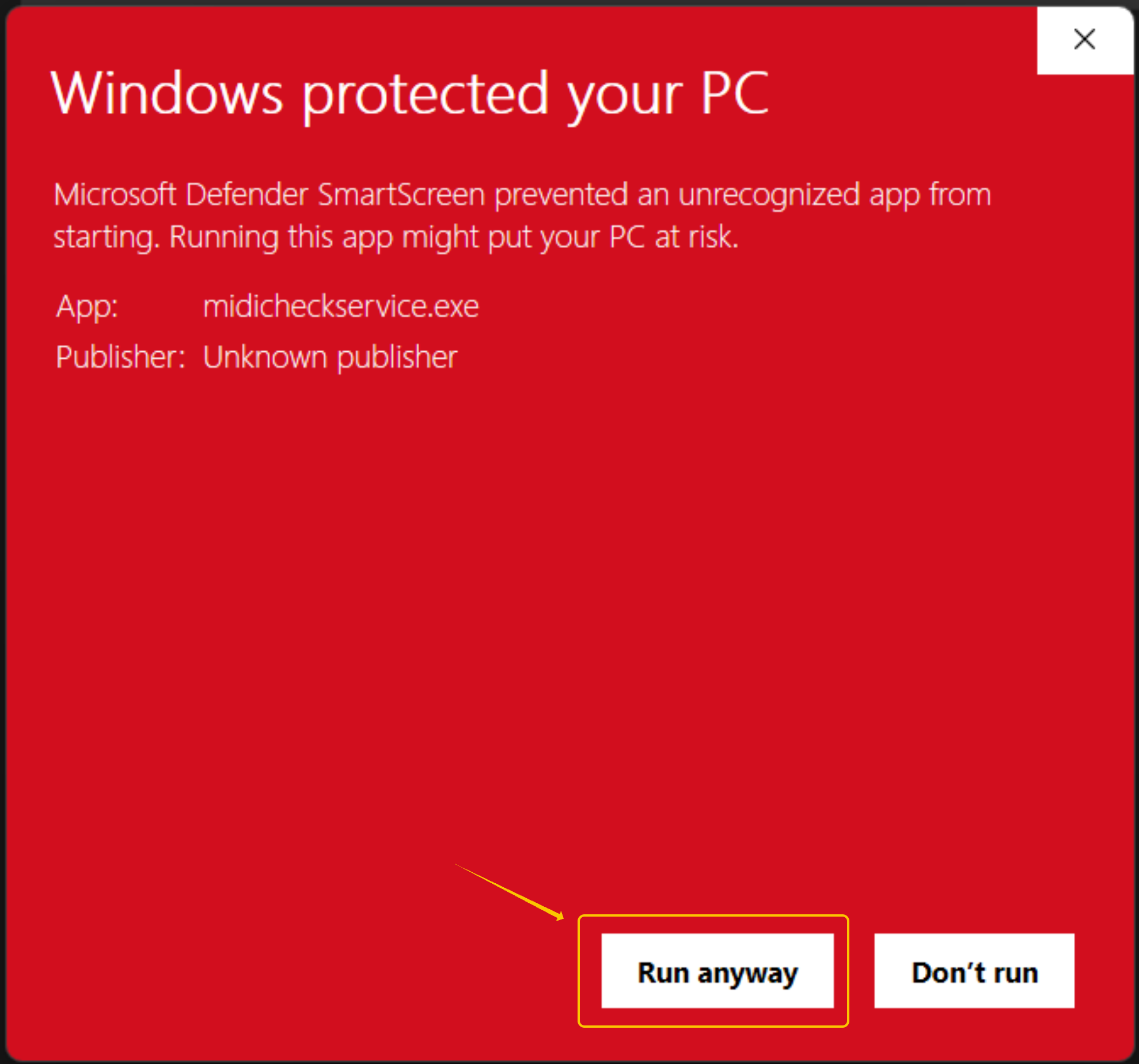
If you get a prompt blocking the software from running. Please click More Info and select Run anyway
- The tool will then provide a result from its scan, indicating if the new services are functional or not on the system
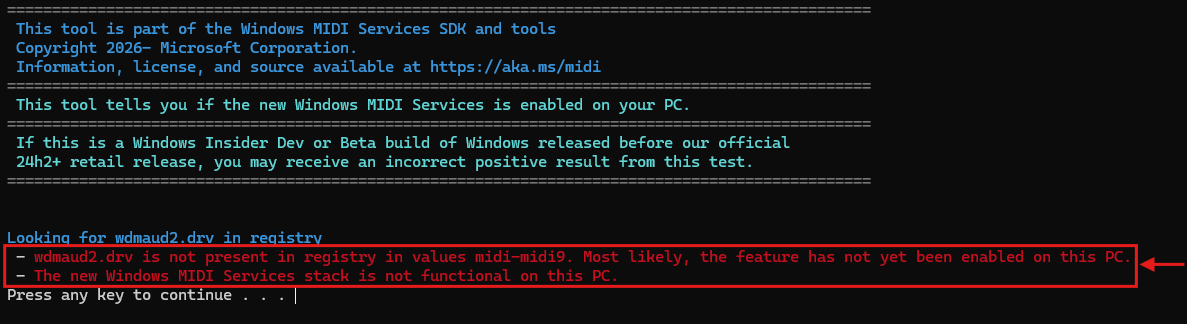
- Press any key to close the screen
Unaffected Systems will display: wdmaud2.drv is not present in registry
If Microsoft's MIDI Service Tool confirms that you are unaffected, and you continue to experience issues...
- Confirm that the driver has been installed.
- Perform Class-Compliant MIDI troubleshooting
Note, it is not expected that class-compliant devices will be impacted by this update; class-compliant devices do not require a driver.
Affected Systems will display: wdmaud2.drv is present in registry.
If Microsoft's MIDI Service Tool confirms that you are affected... Please see - Recommended Workaround: Uninstall the Windows Update
Recommended Workaround: Uninstall the Windows Update
- Right-click the Start menu and choose Settings.
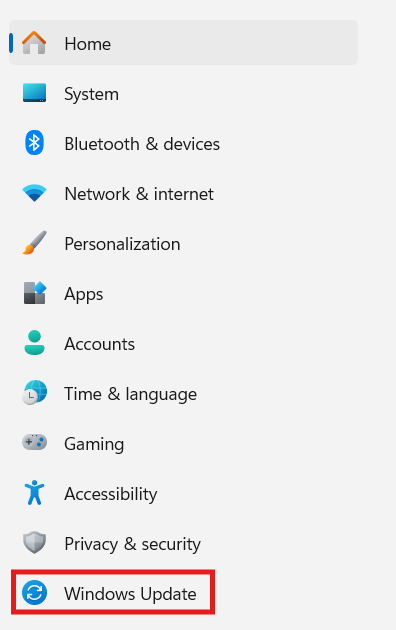
- Choose Windows Update.
- Choose Update History:
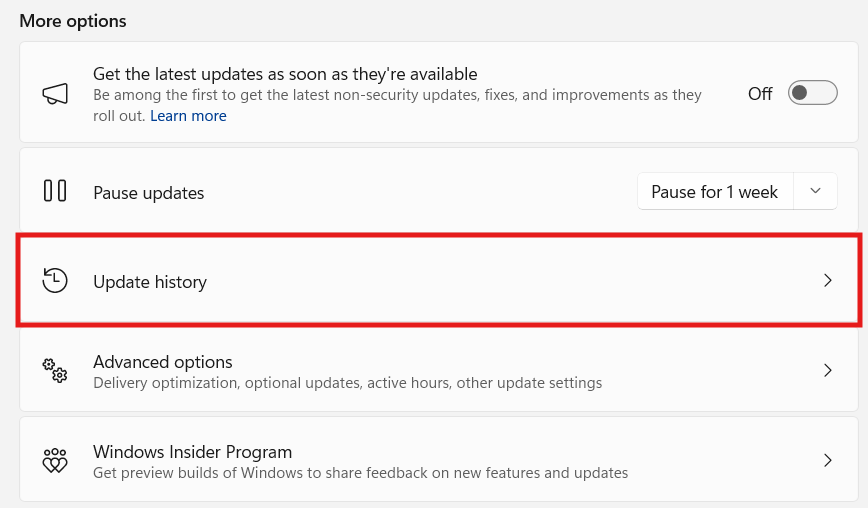
- Next, go to Uninstall Updates
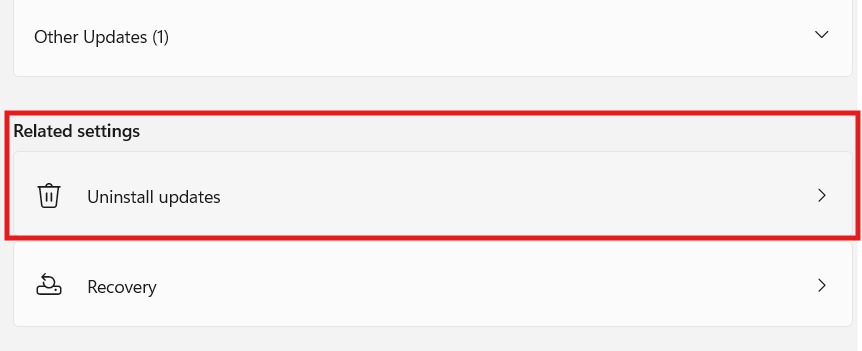
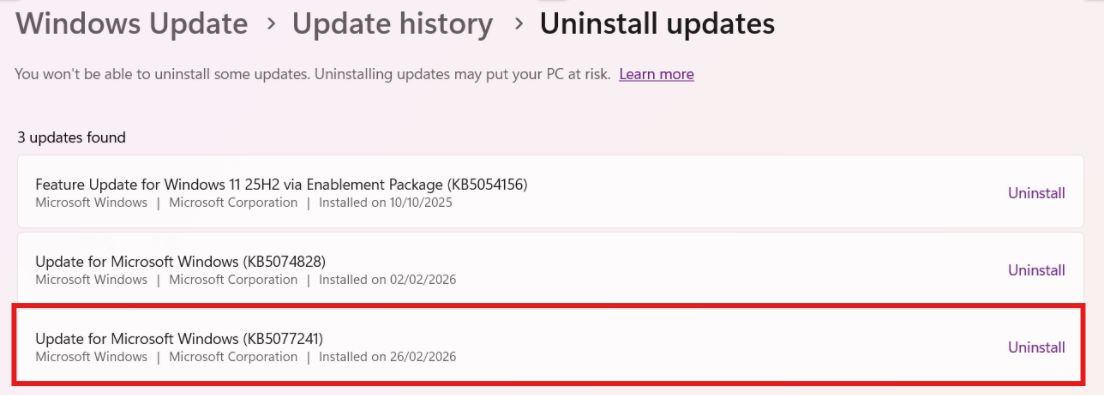
Look for one of the 2026 Updates listed below:
- KB5074105
- KB5077181
- KB5077241
Click Uninstall. Choose Yes, and allow your computer to restart.
If you are unable to uninstall the update, please consider contacting Microsoft Support for assistance rolling back.
Issues persist after uninstalling the updates
Disconnect your MIDI controller > open Device Manager > click on View > Show hidden devices.
Look for faded entries under Sound, Video and Game Controllers, as well as Universal Serial Bus Controllers, then right-click them and select Uninstall Device. These often represent entries that have been accidentally duplicated, causing interference.
Once complete, reconnect your MIDI controller and allow the system to re‑detect the device as new.
If the behavior continues, try installing the Windows WinRT MIDI 1.0 Timestamp Fix outlined in this article: WinRT MIDI 1.0 Timestamp Fix · microsoft/MIDI
How do I prevent my Windows 11 system from updating automatically?
- Open Settings
- Go to the Windows Update tab
- Select Pause updates
Please note you can only pause for a maximum of 5 weeks at a time before needing to perform an update.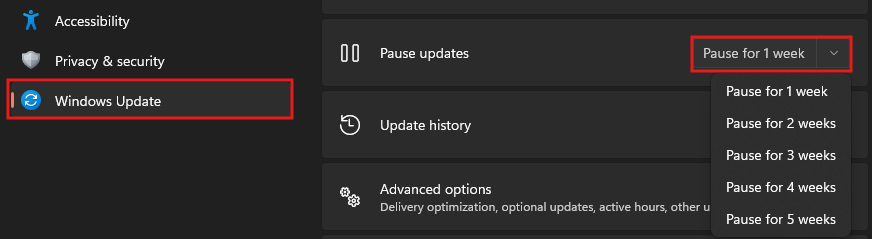
Please be aware that uninstalling or pausing Windows Updates is only a temporary measure. Once the pause period ends, updates will resume unless further action is taken. To permanently prevent automatic updates, changes must be made to the Windows registry. Instructions for this process are available HERE. Extreme caution is advised before making any registry modifications.
Was this article helpful?
That’s Great!
Thank you for your feedback
Sorry! We couldn't be helpful
Thank you for your feedback
Feedback sent
We appreciate your effort and will try to fix the article